 Mesh
Setup guide: Connect HubSpot to Mesh
Mesh is a client–advisor workspace. When you connect HubSpot, Mesh securely reads your CRM contacts, companies, and deals so you and your assigned advisors can view that data in Mesh and plan sales strategy—without leaving Mesh or writing back to HubSpot.
What Mesh does with HubSpot
After you connect, Mesh syncs HubSpot CRM data into your Mesh organization so clients, assigned advisors, and Mesh admins can review it together.
- Read-only access to HubSpot contacts, companies, and deals
- Sales views and KPIs in Mesh (pipeline, open deals, contact counts, and related metrics)
- Optional Mesh AI answers about those HubSpot KPIs inside Mesh—AI does not create, update, or delete HubSpot records
- Mesh does not write back to HubSpot
Install and connect HubSpot
Use the live Mesh app at app.meshedup.ca. You need a Mesh client account and a HubSpot user who can authorize apps (Super Admin or HubSpot Marketplace access).
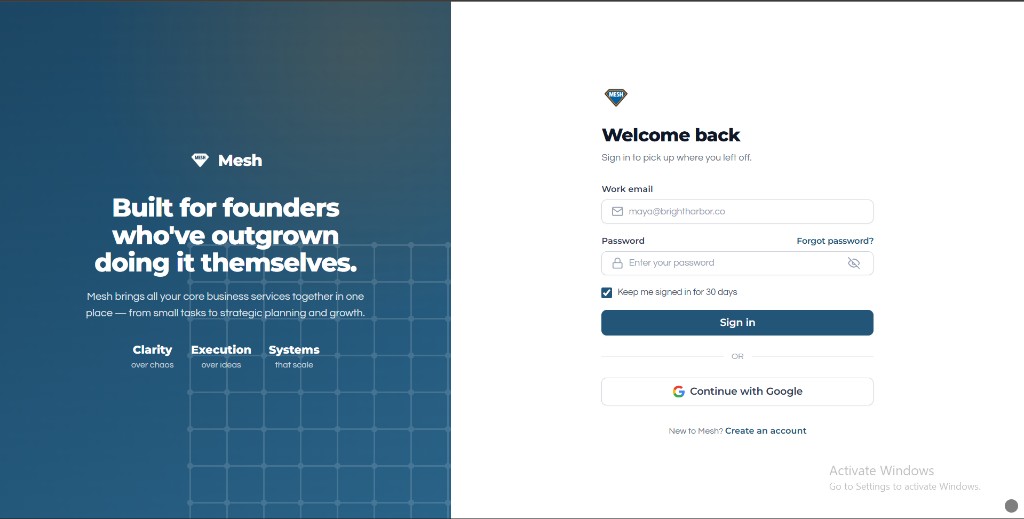
1. Sign in (or create an account) at https://app.meshedup.ca. You can use work email and password, or Continue with Google.
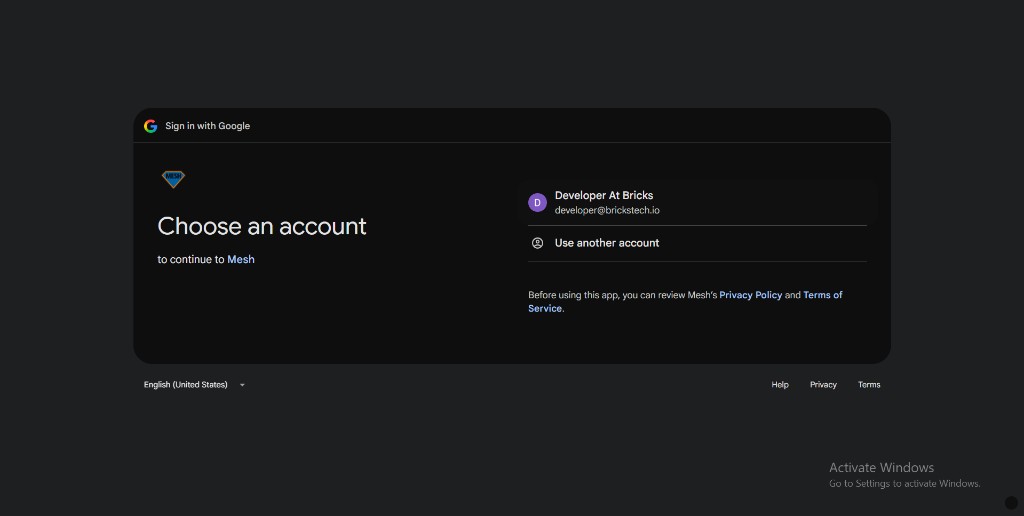
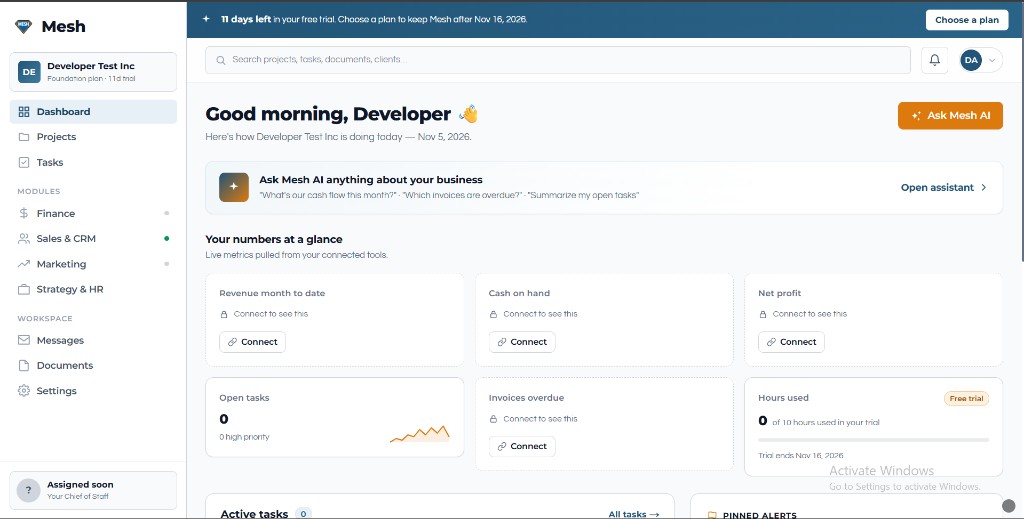
2. After sign-in you land on the client Dashboard. HubSpot metrics appear after you connect; until then, open Sales & CRM or Settings → Integrations to connect.
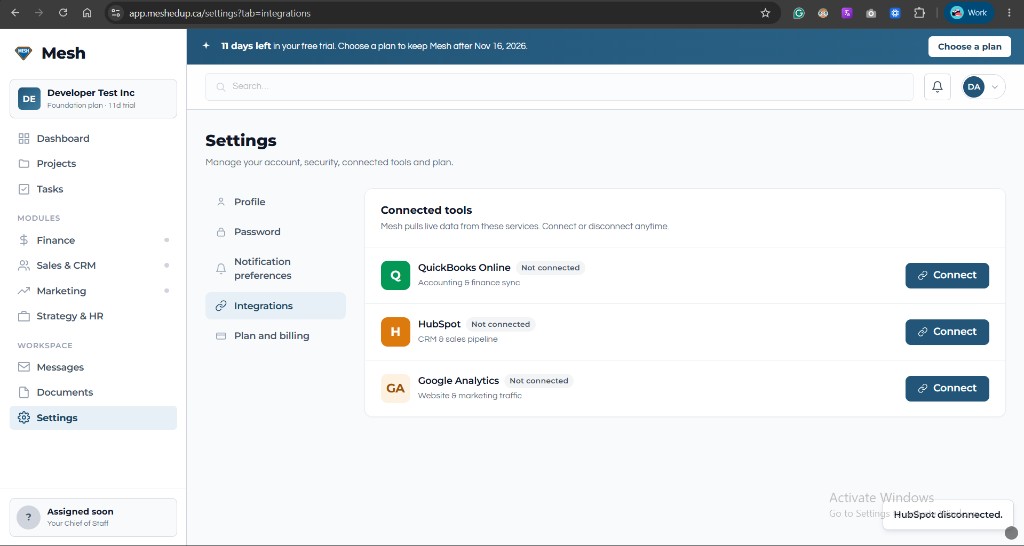
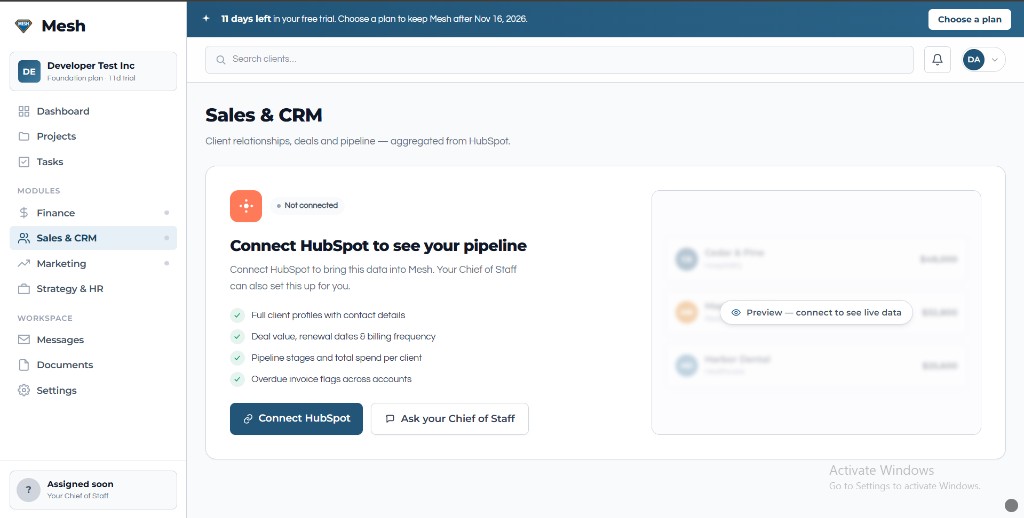
3. Go to Settings → Integrations, or open Sales & CRM. On Integrations, HubSpot shows Not connected—click Connect. On Sales, use Connect HubSpot on the empty state.
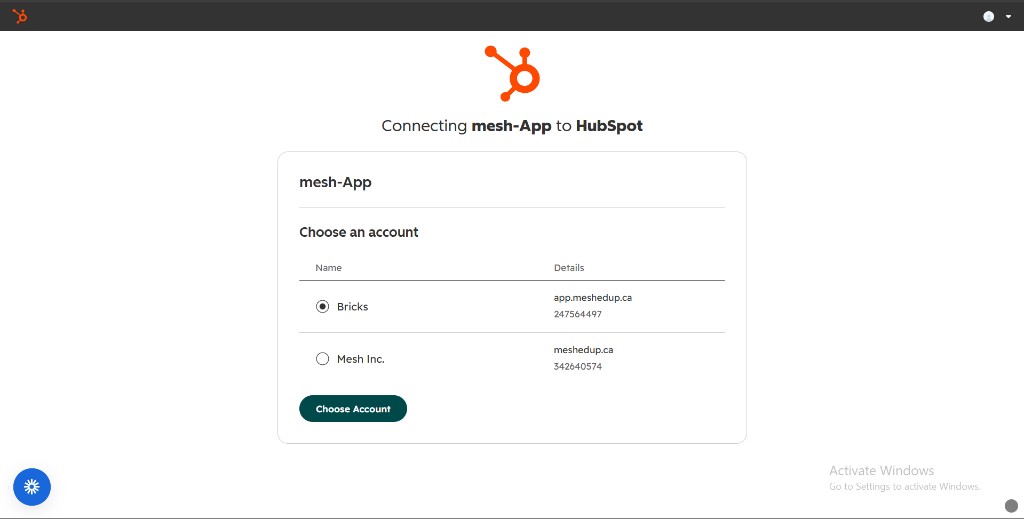
4. HubSpot asks which account to connect. Choose your HubSpot account, then Choose Account.
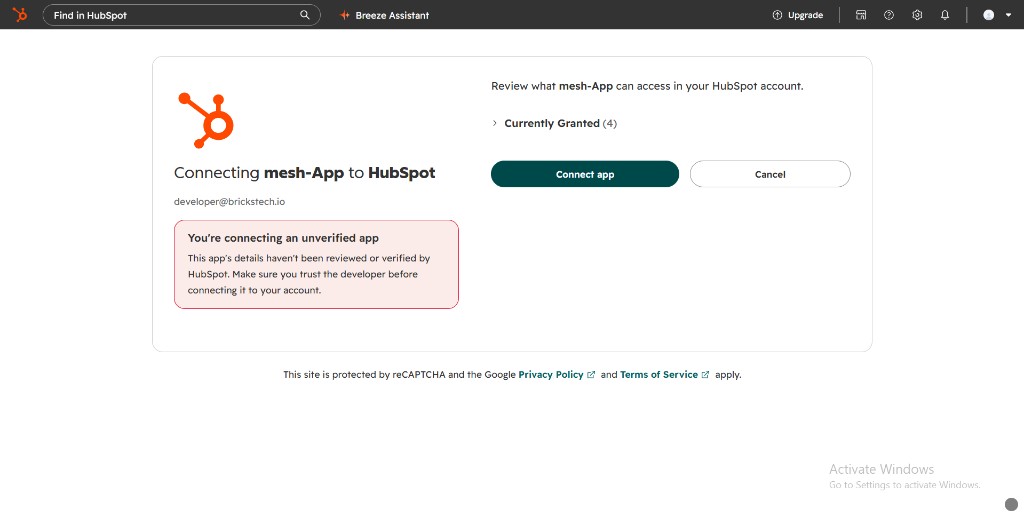
5. Review permissions, then click Connect app. Mesh requests these read-only scopes: oauth, crm.objects.contacts.read, crm.objects.companies.read, and crm.objects.deals.read. Mesh cannot edit your HubSpot CRM with these permissions.
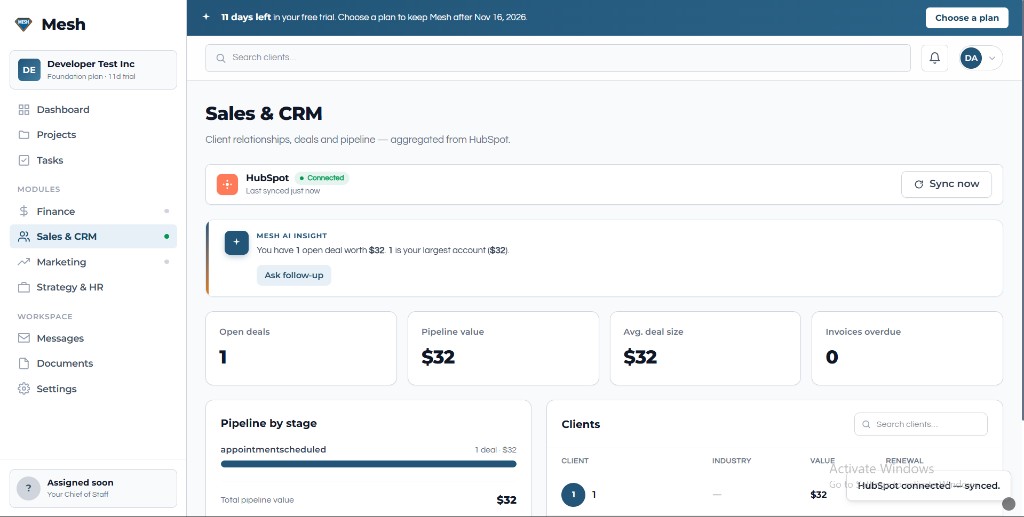
6. You return to Mesh with HubSpot connected. Sales shows Connected status, KPIs, and Sync now.
Configure after install
Mesh does not require field mapping or sync-direction settings. After you authorize HubSpot, the connection is ready.
- Data flows one way: HubSpot → Mesh (read-only)
- On Sales, use Sync now when you want to refresh contacts and deals from HubSpot
- Advisors see HubSpot-backed Sales data for clients who have connected HubSpot
Use HubSpot data in Mesh
- Open Sales to view pipeline and CRM information synced from HubSpot
- Use Sync now on Sales to pull the latest HubSpot snapshot
- Ask Mesh AI about HubSpot KPIs (for example open deals or pipeline value)—answers use Mesh’s read of HubSpot data only
- Open HubSpot from Mesh links when you need to edit records in HubSpot itself
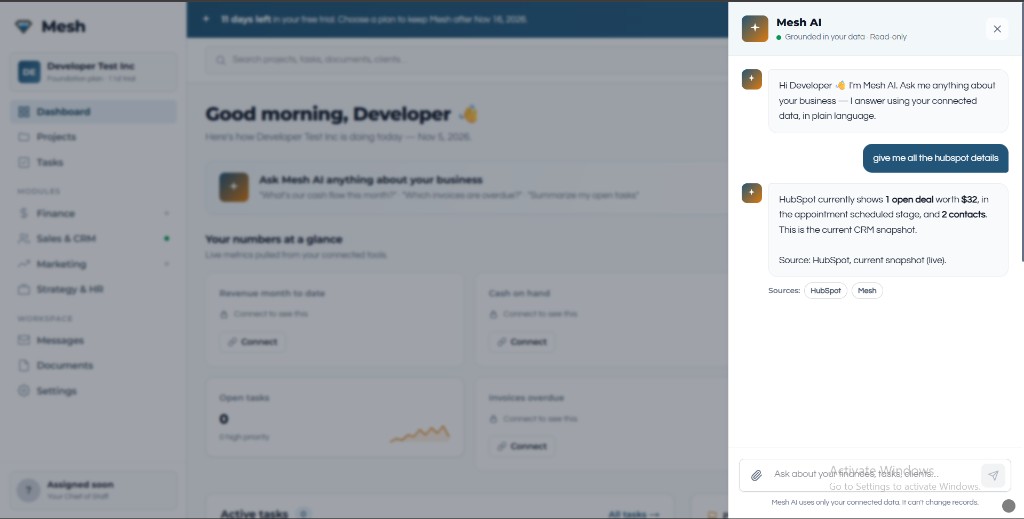
Disconnect HubSpot in Mesh
Disconnecting stops Mesh from syncing HubSpot for that organization. It does not delete your HubSpot CRM data in HubSpot.
- Sign in to Mesh at https://app.meshedup.ca
- Go to Settings → Integrations
- Find HubSpot and choose Disconnect
- Confirm when prompted
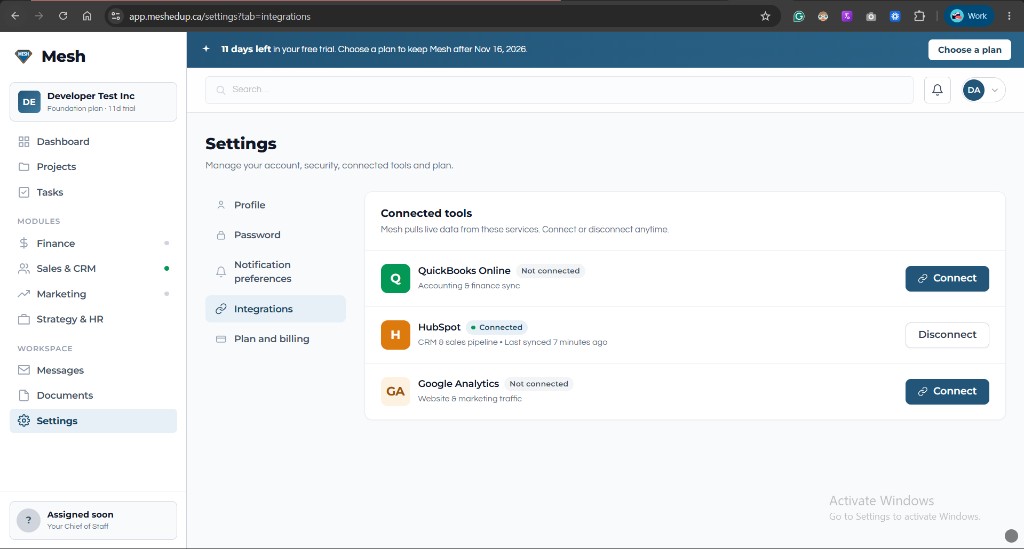
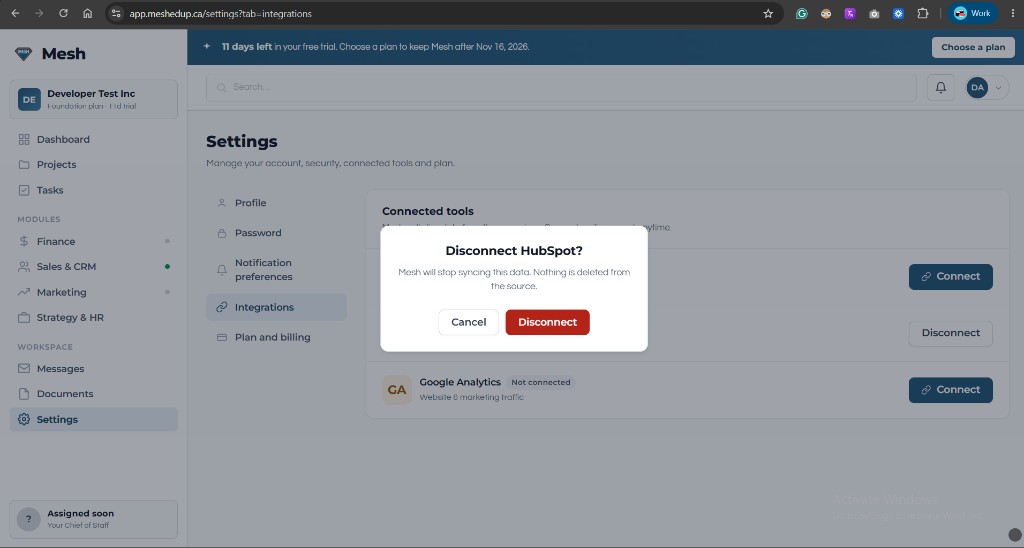
After disconnect: Mesh stops refreshing HubSpot data for that org; Sales no longer shows a live HubSpot connection; records already stored in HubSpot remain unchanged. You can connect again later from Sales or Settings → Integrations.
Uninstall the app from HubSpot
Disconnecting in Mesh stops sync from Mesh’s side. To fully remove Mesh from your HubSpot account, uninstall the connected app inside HubSpot. That ends OAuth access from HubSpot’s side. HubSpot’s Marketplace listing rules ask setup guides to cover this step.
- In HubSpot, open Settings (gear) → Integrations → Connected Apps
- Find mesh-App (or Mesh)
- Click Actions → Uninstall
- Type uninstall in the confirmation box, then confirm
HubSpot’s current help article: HubSpot Knowledge Base: Install apps (see Uninstall an app).
After uninstalling in HubSpot, also disconnect in Mesh (Settings → Integrations) if the connection still appears connected. Your HubSpot CRM records stay in HubSpot; Mesh simply stops reading them.
Need help? Support · Terms of Service · Mesh Inc. · Alberta, Canada · info@meshedup.ca